
Professional software for your Mobile, Web and Desktop applications
RCP Vision develops your solutions in Java, leveraging best practices and Open Source technologies.
With over 10 years of experience in application development, UX design and Modeling methodologies,
we help our customers to build modular, easy-to-upgrade and mantainable software.
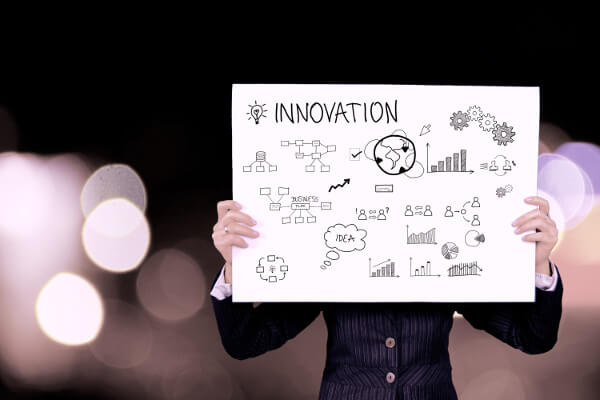
“If you always do what you always did, you will always get what you always got.”Albert Einstein
We provide consueling on top of several Open Source tecnologies all around the Java word. We have strong skills on building desktop and web applications as well as mobile.
Our coaches can help you to explore new tecnologies and take advantages from those that best fit your needs.
Our training classes can bring your team easily to new tecnologies, speeding up the learning process.
Development Support
We pride to build your solutions on top of best Open Source technologies. After years of experience spent in several important projects, we can contribute to your software with deep knowledge of best practices and technologies working side by side with your team.


Model Driven Architectures & Domain Specific Languages
Our passion is to build model driven software to address business challenges and complex system design. We are convinced that that is the best way to be more productive in developing efficient and steady software.
Eclispe Modling Framework (EMF) is a great tooling and runtime framework and EMF Parsley help you to easily render your models with built-in and customizable components.
With other Modeling technologies we can easily manage model comparision and evloution and interactions wiht graphical and texual Domain Specific Languages based on Xtext and Sirius projects.
Agile
After some years spent to discover and test metodologies and agile approach, we have acquired substantial competence in Agile.
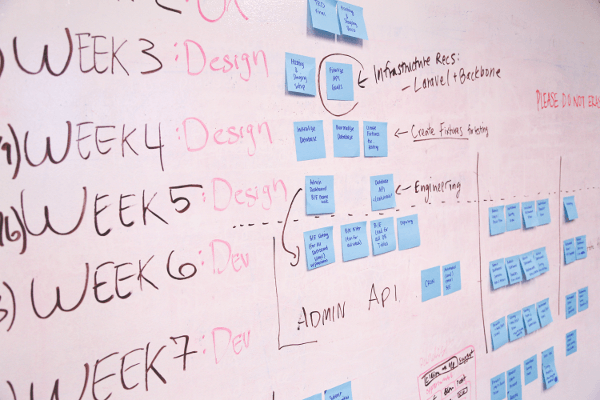
We reached amazing results with a symbiotic combination of good practices and fundamental tools. We embrached Scrum with some variations and we encourage others to do the same by passing on our experience.
We’ve also got inspiration from Extreme Programming, adopting pair programming an Test Driven Development. We’ve made it our sole mission to help our customer to increase code coveredge and code quality.
Eclipse Development
RCP Vision builds solutions on top of best Open Source technologies, especially with Eclipse projects.
As an Eclipse Foundation solution member it contributes to the italian community, as an Eclipse mirror, as Open Source events organizer and contributing on some Eclipse projects (expecially with EMF Parsley).
We customize your favorite IDE providing automation instead of repetitive manual processes and building tools to generate your redundant code.